Search
Media Viewer provides powerful search capabilities to quickly find media in your library.
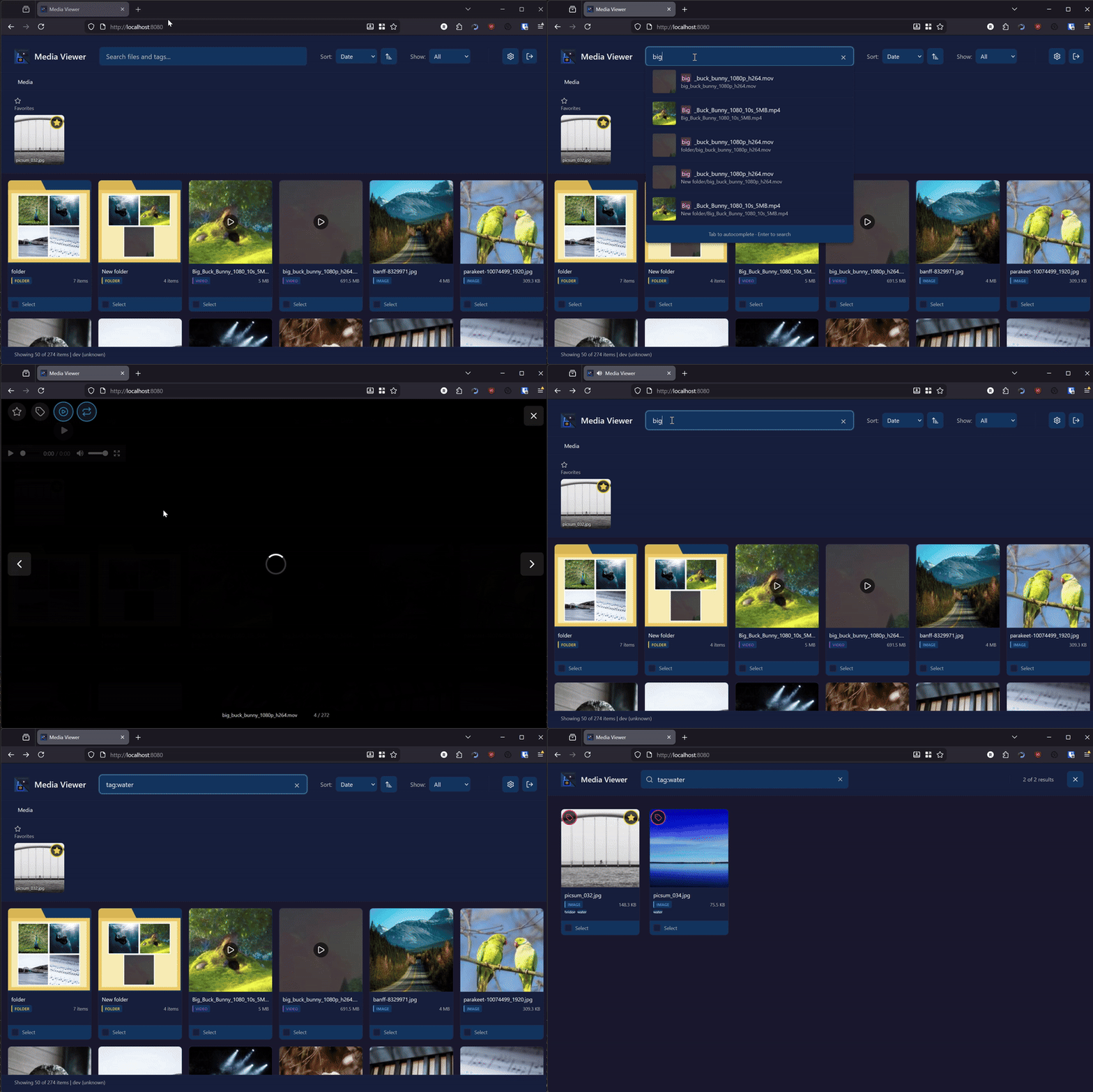
Full-text search with tag filtering and autocomplete
Basic Search
Type in the search box at the top of the page to search by filename.
- Search is case-insensitive
- Partial matches are supported
- Results update as you type
Search Dropdown
As you type, a dropdown shows matching results:
- Up to 10 items are shown
- Results include thumbnail, name, and path
- Favorited items show a star indicator
- Click any result to open it directly
- Press ++enter++ to see all results
Full Results View
Press ++enter++ or click "View all results" to open the full search results view:
- Results display in a gallery grid
- An editable search bar at the top lets you refine your search
- Press ++tab++ to autocomplete suggestions
- Press ++slash++ or ++ctrl+k++ to focus the search bar
- Use the same interactions as the main gallery
- Click "Close" or press ++escape++ to return to browsing
Tag Search
Search for items with specific tags using the tag: prefix:
Tag Suggestions
When you type tag:, suggestions appear showing:
- Matching tag names
- Number of items with each tag
Click a suggestion to search for that tag.
Clicking Tags
You can also search by clicking:
- Any tag displayed on a gallery item
- Any tag in the tag manager modal
- Any tag in the lightbox
Tag Exclusion
Exclude items with specific tags from your results:
or
Combining Inclusions and Exclusions:
Finds items tagged "vacation" but not "2023".
With Text Search:
Searches for "beach" excluding items tagged "private".
Tag Interactions in Search Results
When viewing search results, tags have search-focused behavior:
- Hover over any tag to see the exclude button (−)
- Click the exclude button to add that tag as an exclusion
- Right-click or long-press any tag for options:
- "Search for" - Search for items with this tag
- "Exclude" - Exclude items with this tag
- Type
-or-tag:in the search bar for exclusion suggestions
Note: In search view, clicking tags searches rather than opening the tag editor. This helps you refine your search without leaving the results.
Search Syntax
By Filename
Finds items with "sunset" anywhere in the filename.
By Tag
Finds items tagged with "nature".
By Type
Use the filter dropdown to restrict results to specific types:
- Images only
- Videos only
- Playlists only
Search Tips
Finding Recent Additions
- Sort by Date (descending)
- The newest items appear first
Finding Large Files
- Sort by Size (descending)
- Filter by type if needed
Organizing with Search
Use search to find items that need organization:
- Search for items without tags (browse and look for items missing tags)
- Use selection mode to tag multiple items at once
Search Behavior
Scope
Search covers your entire media library, not just the current folder.
Results
Search results include:
- Files (images, videos)
- Folders
- Playlists
Performance
- Search uses an index for fast results
- The index updates automatically when files change
- Large libraries may have a brief delay on first search