Tagging
Tags are labels you assign to media items for organization and quick retrieval. Media Viewer provides a flexible tagging system that supports individual and bulk operations.
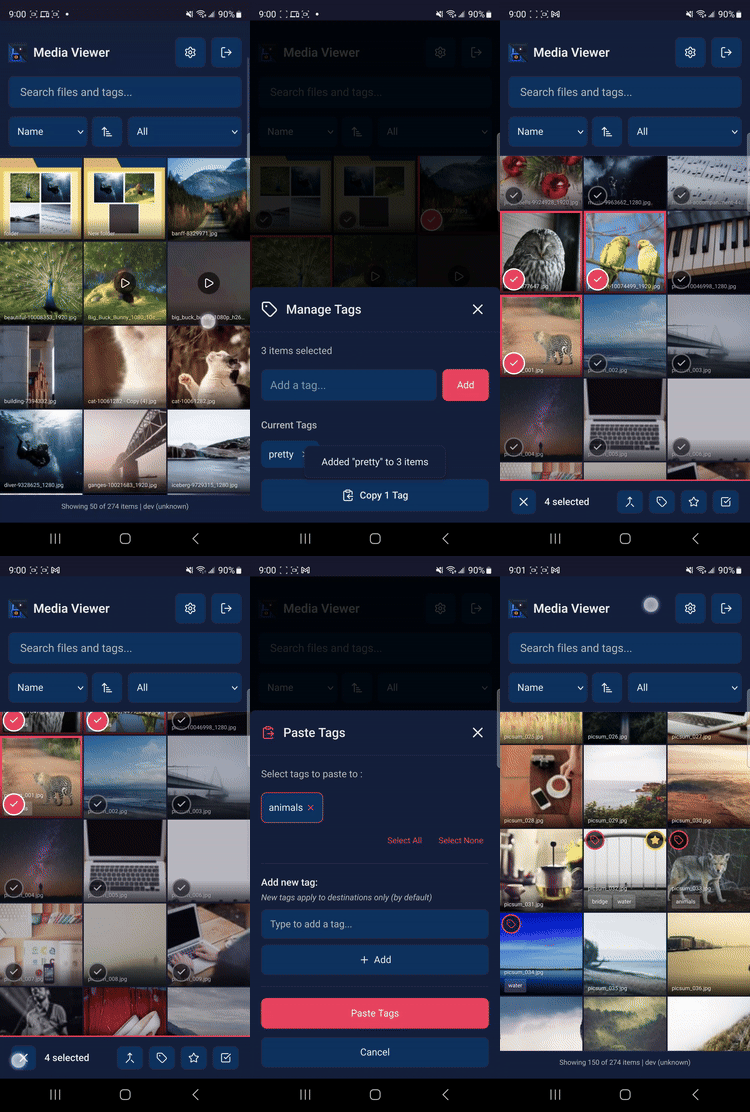
Selection mode enables efficient bulk tagging on mobile
Understanding Tags
- Tags are simple text labels (e.g., "vacation", "family", "2024")
- An item can have multiple tags
- Tags are shared across your entire library
- Tags are case-sensitive ("Vacation" and "vacation" are different tags)
Adding Tags
From the Gallery
- Hover over an item to reveal the tag button (tag icon in the top-left corner)
- Click the tag button to open the tag manager
- Type a tag name in the input field
- Press ++enter++ or click Add
- Repeat for additional tags
- Click outside the modal or press ++escape++ to close
From the Lightbox
- Open an item in the lightbox
- Click the tag icon in the top-left area
- Add tags using the same process as above
Tag Suggestions
As you type, existing tags that match your input appear as suggestions. Click a suggestion to add that tag, or continue typing to create a new tag.
Removing Tags
From the Tag Manager
- Open the tag manager for an item
- Click the X on any tag chip to remove it
From the Gallery (Desktop)
On desktop, tags are displayed on gallery items with a "X | tag" format:
- Hover over a tag on any gallery item
- Click the X on the left side of the tag to remove it
From the Tag Tooltip
When an item has more than 3 tags, a "+N" indicator appears:
- Click the "+N" indicator to see all tags
- Click the X on any tag to remove it
Bulk Tagging
Selection mode allows you to tag multiple items at once.
Entering Selection Mode
- Desktop: Click the checkbox area on any gallery item
- Mobile: Long-press any item
Tagging Selected Items
- Select the items you want to tag
- Click the Tag button in the selection toolbar
- Add tags in the bulk tag modal
- Tags are applied to all selected items
Tag Indicators in Bulk Mode
When tagging multiple items, the modal shows:
- Tags common to all selected items
- Tags present on some items (marked with a "~" indicator)
Copying and Pasting Tags
Media Viewer supports copying tags from one item and pasting them to others.
Copying Tags
- Enter selection mode
- Select a single item
- Click Copy Tags or press ++ctrl+c++
Pasting Tags
- With tags copied, select destination item(s)
- Click Paste Tags or press ++ctrl+v++
- In the confirmation modal, select which tags to paste
- Click Paste Tags to apply
Merging Tags
When multiple items are selected, you can merge all their tags:
- Select 2 or more items
- Click Merge Tags or press ++ctrl+m++
- The modal shows all unique tags from selected items
- Tags not on all items show a count (e.g., "nature (2/3)")
- Select tags to apply and click Merge Tags
All selected tags are applied to all selected items.
Searching by Tag
Click any tag to search for all items with that tag. Alternatively, use the search box with the tag: prefix:
Tag Exclusion
Exclude items with specific tags from search results:
or
Combining Filters:
Finds items tagged "vacation" but not "2023".
Search View Tag Behavior
When viewing search results, tag interactions are search-focused:
- Hover over any tag to see the exclude button (−)
- Click the exclude button to add that tag as an exclusion to your search
- Right-click or long-press any tag for "Search for" or "Exclude" options
- Clicking tags searches for them rather than opening the tag editor
This behavior helps you refine searches without leaving the results view.
See Search for more search options.
Tag Management Tips
- Use consistent naming conventions (e.g., always lowercase)
- Create a hierarchy with prefixes (e.g., "location-beach", "location-mountain")
- Use year tags for chronological organization (e.g., "2024", "2023")
- Combine tags for precise filtering (search for multiple tags)
Tag Manager
Access the centralized Tag Manager from Settings → Tags tab to organize and maintain your entire tag library.
Viewing Tags
The Tag Manager displays all tags in your library with:
- Tag name with color indicator (if set)
- Usage count showing how many files have each tag
- Sortable columns by name (alphabetical) or count (most/least used)
Search and Filter
- Search bar: Type to filter tags by name in real-time
- Show Only Unused: Filter to see tags that aren't assigned to any files
- Show All Tags: Reset filter to view all tags
Renaming Tags
Rename a tag to fix typos or update naming conventions:
- Click the Rename button next to any tag
- Enter the new tag name
- If the new name already exists, tags will be merged
- The rename affects all files using that tag
- Case-only changes are supported (e.g., "animal" → "Animal")
Note: The affected file count is shown in the confirmation message.
Deleting Tags
Remove unused or unwanted tags:
- Click the Delete button next to any tag
- Confirm the deletion in the modal
- The tag is removed from all files automatically
- The deletion count shows how many files were affected
Use Cases
- Clean up typos: Rename "vacaton" to "vacation"
- Standardize naming: Rename "Beach" to "beach" for consistency
- Merge duplicates: Rename "holidays" to "vacation" to combine similar tags
- Remove clutter: Delete experimental or one-off tags
- Find orphans: Use "Show Only Unused" to identify and remove tags no longer in use