WebAuthn (Passkey) Authentication User Guide
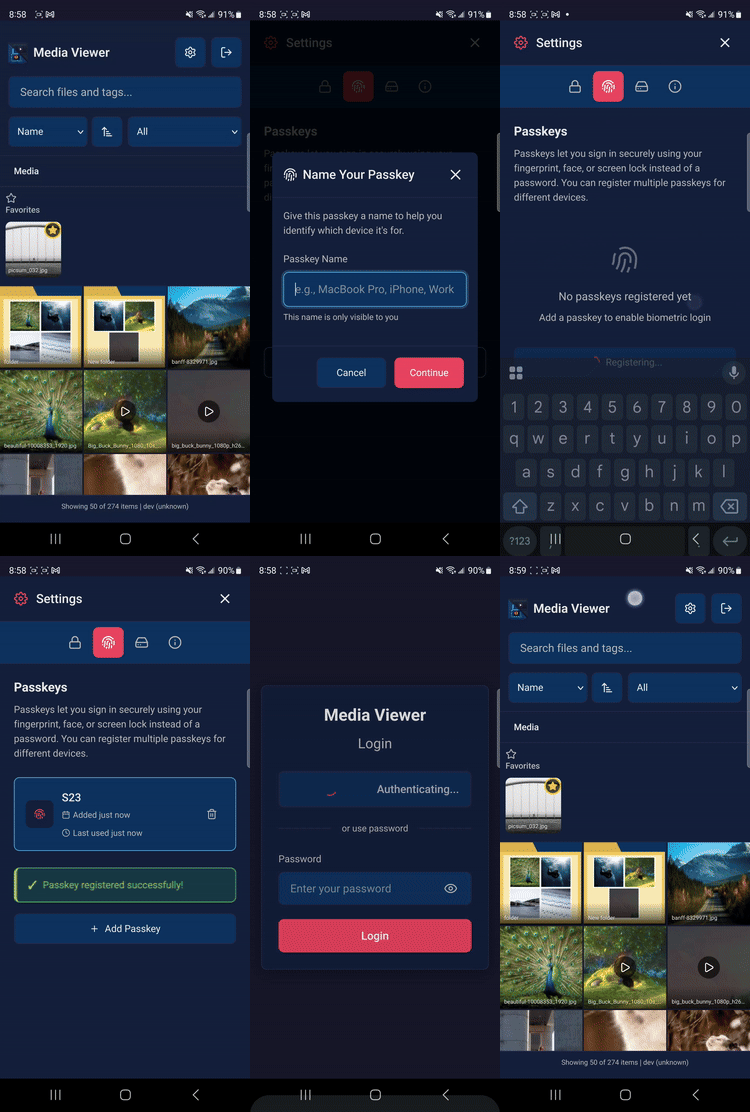
Secure biometric authentication with passkeys
For End Users
Registering a Passkey
- Log in with your password
- Open Settings (⚙️ icon in top-right)
- Navigate to "Passkeys" tab
- Click "Add Passkey"
- Name your passkey (e.g., "MacBook Pro", "iPhone 14", "YubiKey")
- Complete authentication:
- Touch ID/Face ID prompt on Apple devices
- Windows Hello prompt on Windows
- Fingerprint prompt on Android
- Insert and tap security key if using external authenticator
Logging In with a Passkey
Method 1: Auto-prompt (Firefox and older browsers)
- Navigate to login page
- Wait for passkey prompt to appear automatically
- Complete biometric authentication or tap security key
Method 2: Autofill (Chrome, Safari, Edge)
- Navigate to login page
- Click or tap in the password field
- Select your passkey from the autofill dropdown
- Complete biometric authentication
Method 3: Manual button
- Navigate to login page
- Click "Sign in with Passkey" button
- Complete biometric authentication or tap security key
Fallback: Password
- You can always use your password if passkeys fail
- Password field remains available even with passkeys registered
Managing Passkeys
View registered passkeys:
- Settings → Passkeys tab
- See device names, creation dates, and last used dates
Delete a passkey:
- Click trash icon next to the passkey
- Confirm deletion
- The device/key will no longer be able to sign in
Best practices:
- Register passkeys on devices you frequently use
- Use descriptive names ("Work MacBook", "Personal iPhone")
- Remove passkeys for lost or sold devices immediately
- Keep at least one backup authentication method
For Administrators
Initial Setups
- Enable HTTPS on your server (required for production)
- Set environment variables (see Configuration section)
- Restart the application
- Verify configuration in application logs